If you’re having problems using the My BT app, a few quick checks can usually get things working again. This guide explains common issues, what causes them and the steps you can take to fix them.
Trouble logging in?
The first time you use the My BT app, you'll need to log in using your BT ID and password.
- If you've forgotten your BT ID, username or password, see: I've forgotten my BT ID.
- If you don't have a BT ID yet, you can make one online. You need an email address and your account number, which you'll find at the top of your latest bill.
- If you haven't received a bill yet, we can send you your account number by post.
- If you enter your BT ID incorrectly 3 times in the app or on bt.com, we'll lock you out for 15 minutes. Please try again after that time.
I get an error message when trying to test my speed or restart my hub
This may be because these features won't work with all versions of our hub. We're working on fixing this, so check that you have the latest version of the app:
- My BT app for iOS from the Apple App Store
- My BT app for Android from Google Play
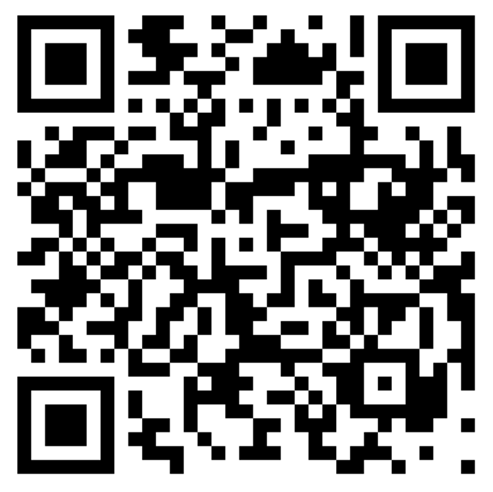
Or scan this QR Code on your device:
In the meantime, you can test your speed online.
You can also find out how to restart your hub manually.
The app keeps crashing
Please make sure you're on the latest version of the app. Also, make sure you're using the latest operating system for your device. If this doesn't help, try deleting the app and reinstalling it.
I can't find the app
To use the app, you need:
- An Apple iPhone or iPad.
- An Apple Vision - requires visionOS 1.0 or later.
- An Android smartphone or tablet on Android.
If you can't find the app in your app store, it won't work on your device.
Problems setting up Touch ID or Android Fingerprint
- Log in to the app using your BT ID and password.
- Set up a PIN. You need to do this the first time you log into the app.
- You'll see a pop-up at the top of the screen which says "Set up Touch ID login" - select this option.
- If this option isn't available at the top of the screen, you can apply this setting by selecting the ‘Touch ID’ option from the side navigation menu.
- Once you're at the setting, select the ‘Enable Touch ID’ toggle to turn it on.
- Each time the app is opened (either after a period of inactivity or after the app's been closed), you'll now be prompted to log in using Touch ID instead of your PIN.
- Log in to the app using your BT ID and password.
- Set up a PIN. You can’t avoid this the first time you log into the app.
- You'll see a pop-up at the top of the screen which says "Set up fingerprint login" - choose this option.
- If this option isn't available at the top of the screen, you can apply this setting by selecting the ‘Fingerprint login’ option from the side navigation menu.
- Once you're at the setting, tap the ‘Enable fingerprint login’ toggle to turn it on.
- Each time the app is opened (either after a period of inactivity or after the app's been closed), you'll now be prompted to log in using your fingerprint instead of your PIN.