Learn how to connect all the devices in your home using Compatible Wi-Fi.
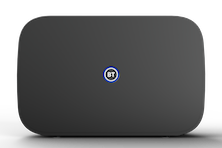
Compatible Wi-Fi is an additional Wi-Fi network available on the BT Smart Hub 3. It gives you another way to connect to your Wi-Fi if an older device is struggling to join your main network.
You may find Compatible Wi-Fi helpful for devices such as:
- Mobiles.
- Tablets.
- Laptops.
- Printers.
- Smart bulbs.
- Smart doorbells.
- Smart cameras.
Compatible Wi-Fi uses the 2.4GHz frequency. This can be slower than your main Wi-Fi, but it means you can connect devices that are not compatible with newer Wi-Fi standards.
Your main Wi-Fi and Compatible Wi-Fi can run simultaneously on different devices. The networks are linked, so you can still control your smart devices, regardless of which network they are connected to.
Turn on Compatible Wi-Fi
- Open a web browser on a device connected to your hub.
- Enter 192.168.1.254 in the address bar to open Hub Manager.
- Accept the secure connection warning.
For help, see Security warning when accessing Hub Manager.
- Select Advanced Settings.
- Enter your hub’s admin password. You’ll find this on the pull-out settings card on the back of your hub, unless you changed it during set-up.
- Select Wireless.
- Select Compatible Wi-Fi.
- Switch Compatible Wi-Fi on.
- You can personalise the Compatible Wi-Fi network name or keep the default, then create a password.
- Select Save.
When you select Save, your Wi-Fi will briefly disconnect while Compatible Wi-Fi sets up. Devices already connected to your main network should reconnect within a minute or two.
On the device you are trying to connect, scan for available networks.
Select your Compatible Wi-Fi network and enter the password you set.
If you still cannot connect your device, see Help connecting devices to your hub.