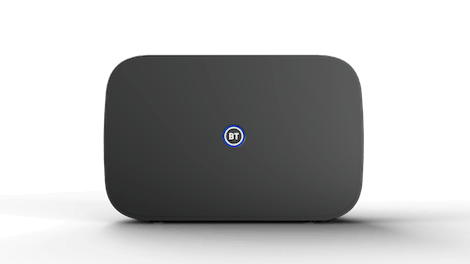
This article provides all the information and help needed for the BT Smart Hub 3, including physical descriptions of the device and its ports, support for Wi-Fi settings and the Hub Manager feature, and compliance information.
What's the box?
Your BT Smart Hub 3
 The power supply
 Your user guide - download the PDF at the bottom of this page.
Safety instructions
For Full Fibre connections (FTTP)
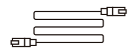 An Ethernet cable
For Part-Fibre connections (FTTC)
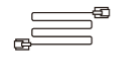 Broadband cable
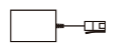 Filter
Note: If you're replacing your Smart Hub 3, the box might not include accessories. You can reuse the ones from your old hub. If accessories are provided, please use them to replace your old ones to ensure full compatibility with your new Smart Hub.
Physical description of the device
This article provides all the information and help needed for the BT Smart Hub 3, including physical descriptions of the device and its ports, support for obtaining Wi-Fi and admin passwords and compliance information.
What's in the box
| Your Smart Hub 3 |
|
| The power supply |
| User guide - download a copy at the bottom of this page. |
| Safety Instructions |
| Full fibre connections only (FTTP) An Ethernet cable |
| Part-Fibre connections (FTTC) A broadband cable |
| Part-Fibre connections (FTTC) A filter |
If you're replacing your Smart Hub 3, the box might not include accessories. You can reuse the ones from your old hub. If accessories are provided, please use them to replace your old ones to ensure full compatibility with your new hub.
Make sure you use the power supply provided with your new Smart Hub 3.
Physical description of the device

Port | What it's used for | |
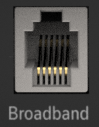
| Broadband port This port may not be present if you have a Full Fibre (FTTP) connection | . |
| Phone port Connects a landline phone to the Digital Voice service. | |
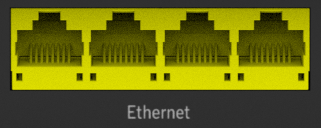
| Ethernet ports 4 ports: Connects to your devices. | |
| WAN port Connects to the Openreach modem. | |
| USB port | |
| Power connector | |
| Power button to turn on and off | |
| Reset button Used to reset your device to the factory default settings. | |
 |
Wireless (WPS) button On the side of the Smart Hub 3, for connecting devices wirelessly.
|
 .
.  .
.  .
.  .
. 

Settings card
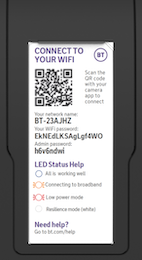 Removable Wi-FI Settings Card: Slides up from the back of your hub.
Setup instructions
Download the My BT app by scanning the QR code below to get help setting up your Smart Hub 3.
Once you have logged in to the app, you will find the Smart Hub 3 setup journey under ‘View details’ on the Broadband tab. Scroll down till you see the button labelled ‘Hub Manager’ and follow the instructions.
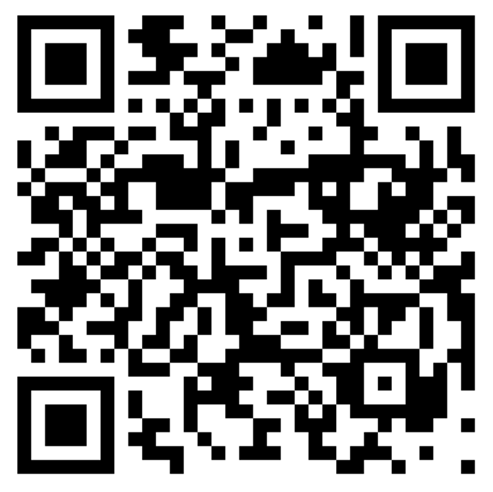
or download the My BT app from:
About Wi-Fi settings and Hub Manager admin password
The Wi-Fi network name, Wi-Fi password and Admin password are printed on the pull-out settings card on the back of your Smart Hub 3. If the card is hard to read, you can still access the information using your smartphone.
If you used the My BT app to set up your Hub:
- You were prompted to scan the QR code on the settings card on the back of the hub during setup of your equipment.
- You can now find your WiFi password in your phone’s WiFi settings under your new BT network, e.g. BT-X1X1XX.
If you didn’t use the My BT app or need the Admin password:
- Remove the settings card from the back of the Hub.
- Use your phone's camera to scan the QR code on the settings card to connect to the new network.
- You can now find your WiFi password in your phone’s WiFi settings under your new BT network eg: BT-X1X1XX.
Your scanner app will display something like:
WIFI:S:<WiFi Name>;T:WPA;P:<WiFi Password>;<Admin Password>
The admin password is required to use the Hub Manager (connect to your Wi-Fi and enter 192.168.1.254 in your web browser).
Disposing of your old electrical and electronic equipment
The Government has a legal requirement to minimise the disposal of unsorted waste from electrical and electronic equipment and to maximise its separate collection and environmentally sound management. The symbol shown here, and on a product, means you shouldn’t throw it in your normal rubbish at the end of its working life.

This product may contain substances that could be harmful to people or the environment if it’s not recycled correctly. The equipment provided to you will remain the property of BT at all times (excluding outright sale of equipment). You’ll need to return it to us within 60 days of telling us you want to cancel, or we may need to charge you for it. You can do this by following the steps here: bt.com/returns
As the environment is important to BT, we can get rid of it in an environmentally friendly way.
If this equipment is a replacement for a similar item, you can also dispose of your old kit by following the instructions above.
Light status and error states
The health of your Hub is displayed through the light on the front of your Smart Hub 3.
The below explains what each light means and possible advice on how to fix any potential problems.



.png)

|
|
|
|---|---|
|
|
Solid greenYour Hub is starting up.
|
|
|
Flashing orangeYour Hub is connecting to broadband.
|
|
|
Solid blueYour Hub is working and is connected to the internet.
|
|
|
Solid whiteYour Hub is connected to mobile using Hybrid Connect and in resilience mode, keeping you connected. |
|
|
No lightThe power is off or the lights have been turned off.
|
|
|
WPS flashingWhen pressed, the light on your Hub will flash blue to show it’s waiting for you to press the WPS button on your computer or device. |
Safety notice and care instructions
Important safety and care instructions
Your Smart Hub 3 from BT is manufactured to comply with European safety standards. Please read the following instructions carefully before installing and using it. Keep these instructions safe for future reference.
Installation and location
- For indoor use only in the UK.
- All devices and cables connected to this hub via the ethernet or WAN port shall be referenced to the same earth circuit as the hub and no part shall be positioned outdoors.
- Position all parts, including power adapters away from heat and sun (eg away from radiators, window sills or other electrical equipment that can get hot).
- Keep area ventilated (eg don’t put in cupboards or back of sofas) and don’t block any vents with objects or thick carpets.
- Keep device and cables out of young children’s reach.
- Only use power adapters provided by BT for this specific device; contact our helpdesk if you need a replacement.
- Electronic devices hate liquids; don’t place devices and power adapters in damp areas or near sources of water or splashes.
- This device uses wireless technology; check before using or installing where restrictions may apply such as in hospitals.
- Product may cause scratches or marks if placed on fragile surfaces (eg veneered wood or delicate fabrics); place on a mat if needed.
- Don’t use near flammable substances or in a flammable atmosphere (eg warehouse or garage).
- Designed for use at room temperatures between 0°C and 40°C.
- Keep device upright on its stand at all times. Not standing it as designed could cause overheating.
Care and maintenance
- Treat all parts with care; no shock or vibration, and don’t pull, twist any cables.
- Dust with a soft dry cloth; don’t use water or solvent.
- Regularly check that objects don’t cover any parts or any vents that could cause overheating.
- When not in use, store in a dry place and away from extreme heat or cold.
Warnings
- If your devices or power adapters appear damaged, stop using them immediately. Switch off your electrical socket if it’s safe to do so and contact our helpdesk.
- Don’t try to open your devices or power adapters. There are no serviceable parts and you risk an electrical shock.
- This device has been evaluated for and shown compliance with European Guidelines when installed and operated with a minimum distance of 20cm between the unit and your body.
- There is a slight chance your product could be damaged by an electrical storm. We recommend that you unplug the power and phone line cord during a storm.
- If you’ve got a pacemaker please check with your doctor before installation.
- Radio signals from this product may cause interference to hearing aids.
Compliance information
Radio Equipment Directive Declaration of Conformity
EU
Hereby, BT declares that the radio equipment type F5394 (Smart Hub) is in compliance with Directive 2014/53/EU. The full text of the EU declaration of conformity is available at: https://www.bt.com/help/broadband/getting-set-up/user-guides-and-manuals-for-bt-hubs
UK
Hereby, BT declares that the radio equipment type F5394 (Smart Hub) is in compliance with Radio Equipment Regulations 2017 and The Product Security and Telecommunications Infrastructure (Security Requirements for Relevant Connected products) Regulations 2023. The full text of the EU declaration of conformity is available at: https://www.bt.com/help/broadband/getting-set-up/user-guides-and-manuals-for-bt-hubs
Restrictions
This radio equipment is subject to certain restrictions when it is placed on the market in Belgium (BE), Bulgaria (BG), Czech Republic (CZ), Denmark (DK), Germany (DE), Estonia (EE), Ireland (IE), Greece (EL), Spain (ES), France (FR), Croatia (HR), Italy (IT), Cyprus (CY), Latvia (LV), Lithuania (LT), Luxembourg (LU), Hungary (HU), Malta (MT), Netherlands (NL), Austria (AT), Poland (PL), Portugal (PT), Romania (RO), Slovenia (SI), Slovakia (SK), Finland (FI), Sweden (SE), Northern Ireland (UK(NI)), Norway (NO), Switzerland (CH), Iceland (IS), Turkey (TR), Lichtenstein (LI).
WiFi 5 GHz: The frequency band 5150-5350 MHz is limited to indoor use. This radio equipment is also subject to certain restrictions when it is placed on the market in United Kingdom (UK): In accordance with the relevant statutory requirements in the UK, the 5150 to 5350 MHz frequency range is restricted to indoor use in the United Kingdom.
Radio Transmission Information
| Frequency range (MHz) | Max power in the range (Watts) |
| 1880-1900 | 50mW |
| 2400-2483.5 | 100mW |
| 5150-5350 | 200mW |
| 5470-5725 | 1W |
| 5725-5850 | 200mW |
Power Information
The devices Smart Hub SH31B and SH32B (F5394-XX-XX) comply with EN 62368-1. The rating label is located on the base of the device.
Further details can be found on BT's Declaration of Conformity page.
PSTI and Software Support
To find the support period for your device or to report security issues, go to: bt.com/terms/otherlegalstuff
The BT Smart Hub contains code that is covered by the GNU General Public License (GPL). In accordance with the GPL, EE has made the relevant code available for download at: bt.com/producthelp
Other support information
Technical specifications
WiFi standard: WiFi 6
Wireless capability: Dual band 2.4GHz 3x3; 5GHz 4x4
Wired connections: 4 x 1Gbps LAN, 1 x 2.5Gbps WAN
Supported broadband technology: Full Fibre, Part Fibre: Select models
Multiple SSID: Yes, with select models/software
Main/Guest/Compatible
Contactless WiFi pairing: No
Parental Controls and Security Advanced: Yes
Smart WiFi/extender support: Yes - Complete Wi-Fi Plus
Hybrid Connect support: Yes
Sustainability
- Plastic-free packaging
- Recycled casing
More accessibility information
BT's Here for You section has further information about Getting the most from your devices.
BT Smart Hub 3 User Guides
Download the full user guide for Full FIbre - PDF 239kb
Download the full user guide for Part-Fibre - PDF 240kb