Smart Hub 2
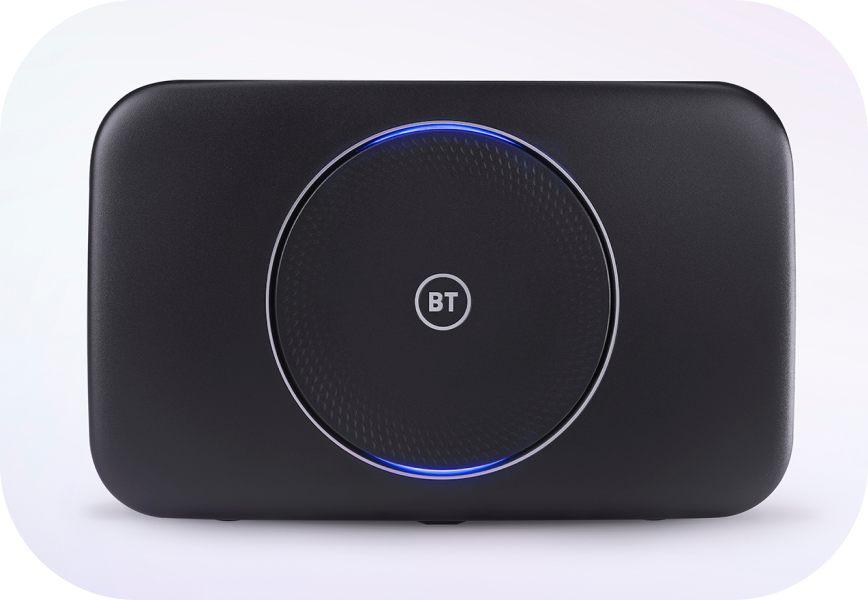
This article provides all the information and help needed for the BT Smart Hub 2, including physical descriptions of the device and its ports, support for Wi-Fi settings and the Hub Manager feature, and compliance information.
What's in the box


The power supply

User guide - download a copy at the bottom of this page.
Safety instructions leaflet
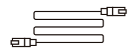
Full Fibre connections (FTTP): an Ethernet cable
Part Fibre Connections (FTTC): Broadband cable

Part Fibre connections (FTTC): A filter
Physical description of the device

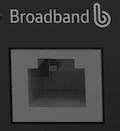
Broadband port
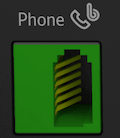
Phone port – connects a landline phone to Digital Phone service
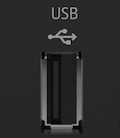
USB port
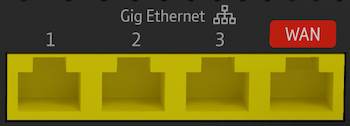
Ethernet / WAN (4 ports) – connects to your devices
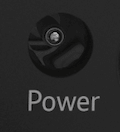
Power connector
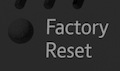
Reset button: reset to factory default settings
Power button – to turn on/off
Wireless (WPS) button – connecting devices wirelessly
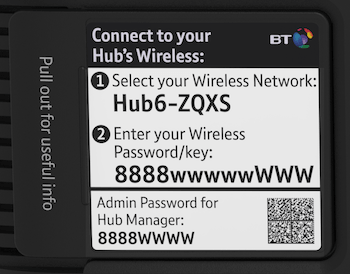
Wi-Fi Settings Card - pull out the card to find your Hub’s default
Wi-Fi name and password on the outer surface.
Setup instructions
BT products are designed to work best when set up using the BT app.
Download the app here. Follow the step-by-step instructions on this BT Smart Hub Set up page.
About Wi-Fi settings and Hub Manager admin password
The Wi-Fi Settings and Hub Manager Admin password are printed on the settings card that comes with your Hub. If the card is hard to read, you can still access the information using your smartphone:
If you used the My BT app to set up your Hub:
- You were prompted to scan the settings card on the back of the Hub.
- You can now find your Wi-Fi details in your phone’s Wi-Fi settings.
If you didn’t use the BT App or need the Admin password:
- Remove the settings card from the back of the Hub.
- Open a QR code scanner app (not just your phone’s camera).
- Scan the QR code on the inside of the card.
Your scanner app will display something like:
WIFI:S:<WiFi Name>;T:WPA;P:<WiFi Password>;<Admin Password>
The admin password is only needed if you want to use the Hub Manager.
Error states
Light status and error states
Error states are displayed through the light on the front of the Hub - see What the lights on your Smart Hub mean. These can also be seen in the BT app, or in the Hub Manager:
- Open a web browser on a device in your home that’s connected to the Hub (via Wi-Fi or Ethernet).
- Go to http://192.168.1.254 to open the Hub Manager.
- The Connection Status will detail the status of your broadband connection.
Disposing of your old electrical and electronic equipment
The Government has a legal requirement to minimise the unsorted waste disposal of electrical and electronic equipment and to maximise its separate collection and environmentally sound management. The symbol shown here and on a product means you shouldn’t throw it in your normal rubbish at the end of its working life.

This product may contain substances that could be harmful to people or the environment if it’s not recycled correctly. The equipment provided to you will always remain the property of BT (excluding outright sale equipment). You’ll need to return it back to us within 60 days of telling us you want to cancel, or we may need to charge you for it. You can do this by following the easy steps on bt.com/returns
As the environment is important to BT, please send your equipment back to us so we can dispose of it in an environmentally friendly way.
If this equipment is a replacement for a similar item, you can also dispose of your old kit by following the instructions above.
Safety notice and care instructions
Important safety and care instructions
Your Smart Hub 2 from BT is manufactured to comply with European safety standards. Please read the following instructions carefully before installing and using it.
Installation and location
- For indoor use only in the UK.
- Always keep the device upright on its stand. Not standing it as designed could cause overheating
- Position all parts, including power adapters, away from heat and sun (e.g. radiators, windowsills, or other electrical equipment that can get hot).
- Keep the area ventilated (e.g. don’t put in cupboards or back of sofas) and don’t block any vents with objects or thick carpets.
- Keep the device and cables out of young children’s reach.
- Only use power adapters provided by BT for this specific device; contact our helpdesk if you need a replacement.
- Electronic devices hate liquids; don’t place devices or power adapters in damp areas or near water or splashes.
- This device uses wireless technology; check before using or installing it, as restrictions may apply, such as in hospitals.
- Product may cause scratches or marks if placed on fragile surfaces (e.g. veneered wood or delicate fabrics); place on a mat if needed.
- Don’t use near flammable substances or in a flammable atmosphere (e.g. warehouse or garage).
- Designed for use at room temperatures between 0°C and 40°C.
Care and maintenance
- Treat all parts with care; no shock or vibration, and don’t pull or twist any cables.
- Dust with a soft dry cloth; don’t use water or solvent.
- Regularly check that objects don’t cover any parts or vents, which could cause overheating.
- When not in use, store in a dry place and away from extreme heat or cold.
Warnings
- If your devices or power adapters appear damaged, stop using them immediately. Switch off your electrical socket if it’s safe to do so and contact our helpdesk.
- Don’t try to open your devices or power adapters. There are no serviceable parts, and you risk an electrical shock.
- This device has been evaluated for and shown compliance with European Guidelines when installed and operated with a minimum distance of 20cm between the unit and your body.
- There is a slight chance your product could be damaged by an electrical storm. We recommend that you unplug the power and phone line cord during a storm.
- If you’ve got a pacemaker, please check with your doctor before installation.
- Radio signals from this product may interfere with hearing aids.
Radio Equipment Directive Declaration of Conformity
EU
Hereby, BT declares that the radio equipment type Smart Hub 2 (model number GRV9517UAC34-A-SA) is in compliance with Directive 2014/53/EU. The full text of the EU declaration of conformity is available at: bt.com/producthelp.
UK
Hereby, BT declares that the radio equipment type Smart Hub 2 (model number GRV9517UAC34-A-SA) is in compliance with Radio Equipment Regulations 2017 and The Product Security and Telecommunications Infrastructure (Security Requirements for Relevant Connected products) Regulations 2023. The full text of the EU declaration of conformity is available at: bt.com/producthelp.
Restrictions
This radio equipment is subject to certain restrictions when it is placed on the market in Belgium (BE), Bulgaria (BG), Czech Republic (CZ), Denmark (DK), Germany (DE), Estonia (EE), Ireland (IE), Greece (EL), Spain (ES), France (FR), Croatia (HR), Italy (IT), Cyprus (CY), Latvia (LV), Lithuania (LT), Luxembourg (LU), Hungary (HU), Malta (MT), Netherlands (NL), Austria (AT), Poland (PL), Portugal (PT), Romania (RO), Slovenia (SI), Slovakia (SK), Finland (FI), Sweden (SE), Northern Ireland (UK(NI)), Norway (NO), Switzerland (CH), Iceland (IS), Turkey (TR), Lichtenstein (LI).
WiFi 5 GHz: The 5150-5350 MHz frequency band is limited to indoor use. This radio equipment is also subject to certain restrictions when it is placed on the market in the United Kingdom (UK): In accordance with the relevant statutory requirements in the UK, the 5150 to 5350 MHz frequency range is restricted to indoor use in the United Kingdom.
|
Frequency range |
Max power in the range (dBM) |
|---|---|
|
1.88 – 1.90 |
18.4 |
|
2.41 – 2.47 |
20 |
|
5.15 – 5.25 |
23 |
|
5.25 – 5.35 |
23 |
|
5.47 – 5.72 |
30 |
Power Information
The devices Smart Hub 2 (model number GRV9517UAC34-A-SA complies with EN 62368-1. The rating label is located on the base of the device.
Further details can be found on bt.com/producthelp
PSTI and Software Support
To find the support period for your device or to report security issues, go to: bt.com/terms/otherlegalstuff
The EE Smart Hub contains code that is covered by the GNU General Public License (GPL). In accordance with the GPL, EE has made the relevant code available for download at: bt.com/hlp/gplcode
Other support information
Technical specifications
WiFi standard: WiFi 5
Wireless capability: Dual band - 2.4GHz 3x3 | 5GHz 4x4
Wired connections: 4 x 1Gbps LAN
Supported broadband technology
Full Fibre
Part Fibre - select models
Multiple SSIDs: Yes
Contactless WiFi pairing: No
Parental Controls and Security: Yes
Smart WiFi/Extender support: Yes – BT Complete WiFi
Smart Hybrid Connect support: Yes
Sustainability
Recycled packaging
More accessibility information
BT's Here for You has more information about Getting the most from your devices.
Download the BT Smart Hub 2 user guide for Full Fibre (128kb)