Your BT TV box includes a range of accessibility features designed to support different viewing and navigation needs. Find out how to enable Audio Description, turn on Audio Feedback, use high-contrast colours, and control your TV box with a compatible USB keyboard.
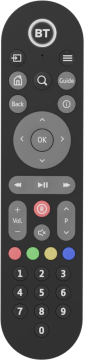
Press the More button on your remote for quick access to accessibility features like Audio Description and Subtitles.

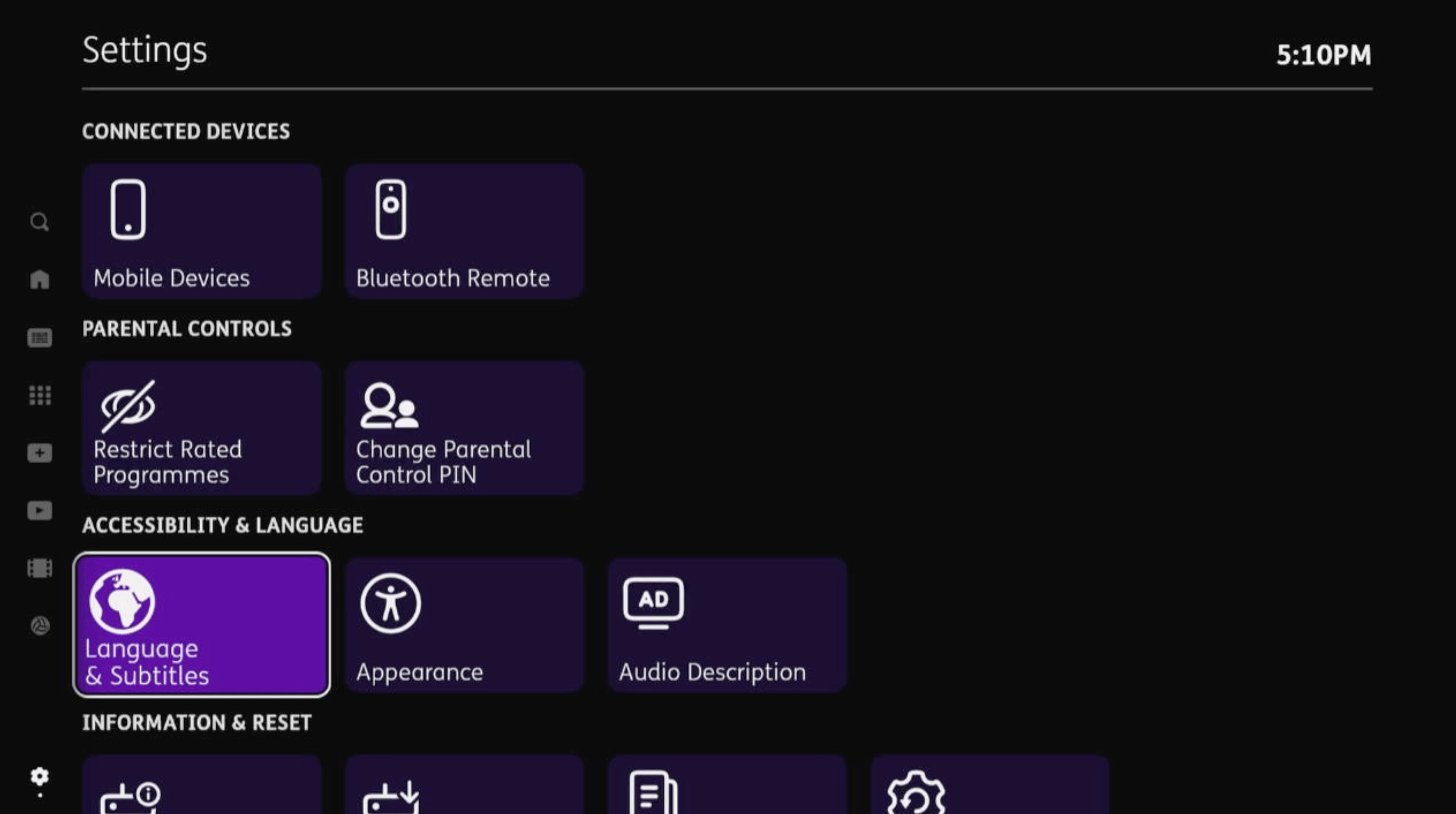
This setting provides audio narration that describes what's happening on the screen.
You can check whether a programme includes Audio Description by pressing the i button on your remote control. If Audio Description is available, you'll see AD in the programme summary.
To turn Audio Description on, press the AD button on your remote control or press the Menu button. If you have a TV Box Pro, you can also press the MORE button on your remote control (the top-right button with three horizontal lines).
Go to Settings > Accessibility & Language > Audio Description, choose your preferred setting, and then select Done.
Changing the Audio Description volume
To adjust the Audio Description volume, go to Settings > Accessibility & Language > Audio Description. Select Volume, choose your preferred setting, and then select Done.
If you find using the TV remote control difficult, a plug-in UK USB keyboard can be used instead. Keyboard key mapping is used to support popular accessible keyboards.
This currently works with the keyboards below. Click on the keyboard you use to see which keys replicate your remote control buttons:
The keyboard can be used in conjunction with the remote control, or as a substitute. This works across the YouView menus, including the On Demand players.
An alternative, high-contrast colour scheme is available on BT TV to make it easier to navigate the menus. It can be useful for some customers with a visual impairment.
The new colour scheme features white text on a black background and all graphical overlays become opaque.
Normal colour scheme
High-contrast colour scheme
To switch this feature on:
- Press the Home button on your remote.
- Go to Settings.
- Head to Accessibility & Language.
- Select Appearance.
- Select high-contrast colours to change the toggle to on.
- Go to Done.
British Sign Language (BSL) is a language which, rather than using sound, uses hand-shapes and patterns together with facial expressions to communicate and express feelings.
How to find out if a programme has sign language
Not all programmes support this feature, it all depends on whether the broadcaster has made it available. You can find out if a programme has sign language by viewing the programme summary:
- with the programme on your TV
- press the i button on your remote
- if the programme summary shows [SL], it has sign language available
Turning on the sign language feature
You can turn this feature on by:
- pressing the Home button on your remote
- go to Settings > Accessibility & Language > Language & Subtitles
- select your preferred setting
- go to Done
Enabling this feature means that if a signed version of On Demand content is available, you'll be delivered the signed version of the programme.
Turning on subtitles on your BT TV box
Subtitled programmes have an [S] icon next to their title in the programme guide.
You can turn subtitles on or off by pressing the SUB button on your remote control.
If you have the TV Box Pro:
- press the MORE button (top right hand button with three horizontal lines on)
- go to the Subtitles menu
Alternatively:
- press the main menu button
- go to Settings > Accessibility & Language > Language & Subtitles
- select your preferred setting
- go to Done
Zoom functions on your BT TV box
There are two zoom functions:
Zoom Interact
This increases the size of the text on the TV guide and menus, making it easier to read the text on the screen. However, it doesn’t work on your live TV picture.
Press the ZOOM button on your remote control to use the Zoom Interact feature. Or, if you have the TV Box Pro, press the MORE button on your remote (top right hand button with three horizontal lines on it).
You can then use YouView as normal.
Zoom Interact isn't available on the On Demand players. You can exit the zoom mode by pressing ZOOM on your remote until it returns to normal view. If you switch off your box in Zoom mode, it will still have Zoom active when you switch it back on.
Zoom Pan
This allows you to magnify an area of the screen and move around using the arrows on your remote control. To activate this function, press the ZOOM button on your remote control twice. A cursor will appear, allowing you to move around the screen.
Press OK to confirm your position.
If you want to exit Zoom mode, press ZOOM again on your remote until the view returns to normal.
Zoom Pan isn't available on the TV guide or On Demand players.