Setting a fixed 2.4 GHz Wi-Fi channel on your Smart Hub can improve performance if your Wi-Fi connection is slow or unstable. Follow the steps in this article to change your channel.
Your Smart Hub acts like a Wi-Fi traffic controller, constantly steering your phone, laptop, and smart TV into different 'lanes' (channels) to avoid traffic jams.
It does this automatically behind the scenes to ensure that you always have the fastest, cleanest connection possible with minimal interference. While we recommend you leave your hub to do this, there are some rare situations where you may want to use a fixed wireless channel instead:
Stubborn Smart Devices
Some older 2.4GHz devices like smart plugs, security cameras and lightbulbs can struggle to stay connected when your hub is switching channels in the background. Some device manufacturers may also recommend that you avoid the use of certain channels.
Wi-Fi interference
If you live next to a source of Wi-Fi interference, or have radio or electrical equipment in your home that is known to disrupt Wi-Fi signals, then forcing your hub to stay on a completely different channel can help bypass the problem.
Choosing the right Wi-Fi channel on your hub can make a big difference to performance, especially on the 2.4 GHz band. In a busy area, where many networks overlap.
Setting a fixed channel (usually 1, 6, or 11) can reduce interference, improve stability, and give more consistent speeds. It is worth making the occasional check, as the best channel for your home can change over time.
Fixing your Wi-Fi channel may seem like a 'quick fix' for some things, but it can do more harm than good. Wireless traffic changes by the second, and a channel that is 'good' one minute may be 'bad' the next.
Fixing the Wi-Fi channel is like turning off 'auto-pilot' and could result in your router sitting in traffic, rather than taking a faster detour.
Before you start
This guide applies to the BT Smart Hub 3
Setting your channel to 1, 6 or 11 can reduce interference from nearby networks and improve performance.
Set your Wi‑Fi channel
- Open a web browser on a device connected to your hub.
- Enter 192.168.1.254 to open Hub Manager.
- Select Switch to HTTPS.
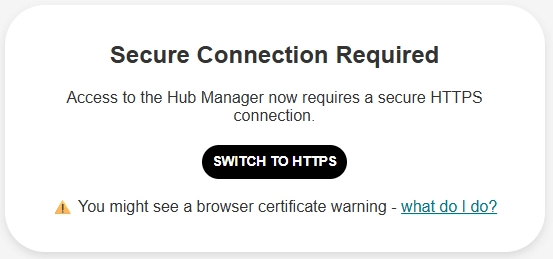
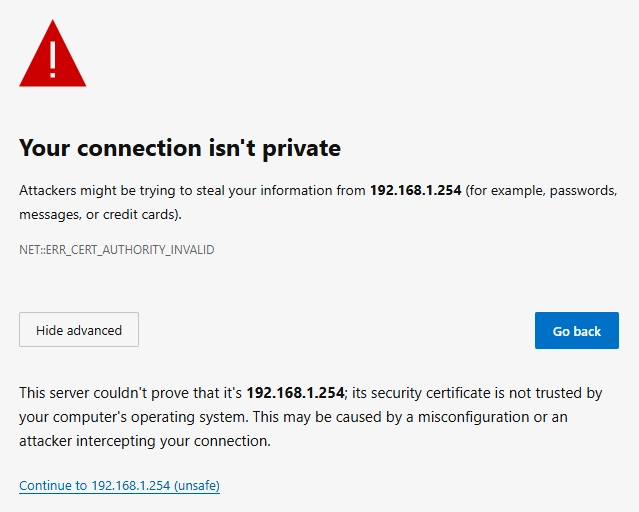
- If you see a warning, follow our guide: Fix a Hub Manager security warning
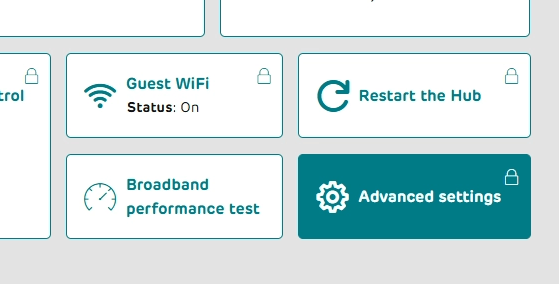
- Select Advanced settings.
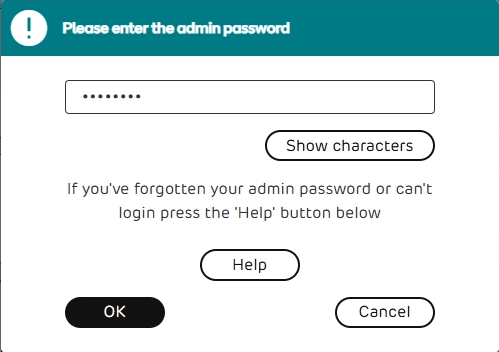
- Enter your admin password (on the settings card on your hub) and select OK.
- Select Wireless.
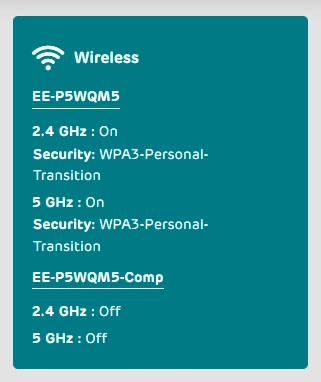
- In the 2.4GHz section, open the channels drop-down.
- Select 1, 6 or 11.
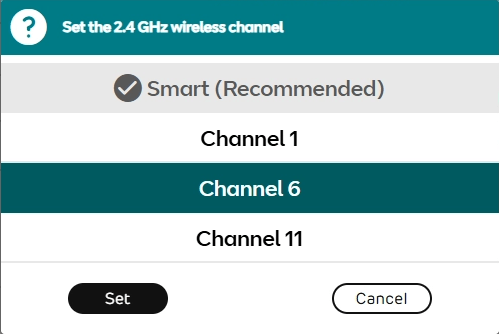
- Select Set.
- Scroll up and select Save.
- Select Yes to confirm.
After saving the changes, devices on your network may suffer a brief interruption in connectivity. If you are struggling to reconnect any devices after making this change, then try powering the affected device off/back on.
Fix a problem
Devices disconnect after saving
Turn the device off and back on, then reconnect.
Can’t access Hub Manager
Make sure you’re connected to your hub and have entered the address correctly.
Password not working
Check the settings card on the back of your hub.
Accessibility and support
If you need help in a different format or extra support:
- Contact us to speak to a Guide.
- Ask about accessible formats or additional support for your needs.
- An authorised user can manage settings on your behalf if needed.