Set up TV Box Edge using Wi-Fi
Check your hub
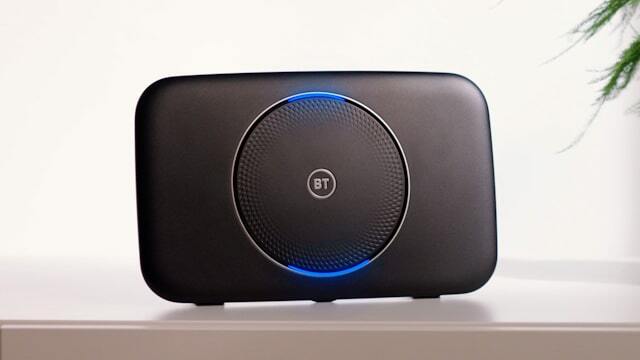
First, make sure your hub is correctly set up and working. The light on the hub should be blue.
Hub not showing a blue light?
Find out What the different coloured lights mean.
Position your TV Box Edge
.gif)
Follow the tips below for the best possible connection:
- Place your TV box within 5 metres of your Smart Hub.
- Restart your Smart Hub and TV box so they can reconnect.
- Try to make sure there's only one wall or ceiling between the Smart Hub and TV box.
- If you cannot have the TV box and Smart Hub within 5m of each other, extend your home Wi-Fi signal with Complete Wi-Fi.
Position your TV Box Edge cont.
- The TV box works best in an open and central location, so don’t store it in cupboards, cabinets, or behind the TV.
- Don’t stack other electrical equipment on top of the TV box and position it away from other electrical devices such as aquariums or fridges, which can interfere with the signal.
- Use the provided HDMI cable for the best picture.
- Add a Complete Wi-Fi disc to boost your signal (place it at the midpoint between your TV box and hub). You can order another disc in the My BT app.
Connect TV box to TV
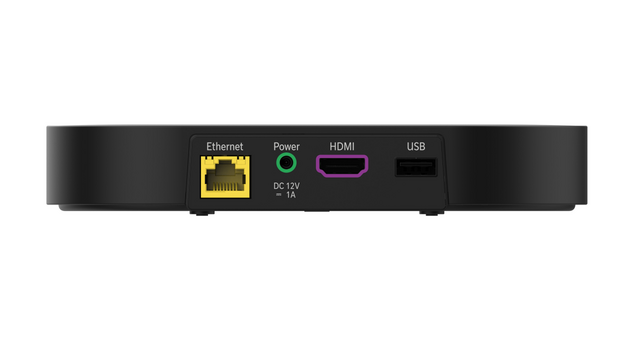
Plug one end of the HDMI cable into the HDMI port on the back of the TV box. Plug the other end into the back of your TV. If you have more than one HDMI port on your TV, plug in to ‘HDMI 1'.
Connect TV box to power
Plug the power cable into the back of the TV box and plug the power socket into the nearest socket on the wall. Make sure to unplug the Ethernet cable from the back of the TV box.
Press the power button on the front of the TV box to turn it on.
Set up your remote control
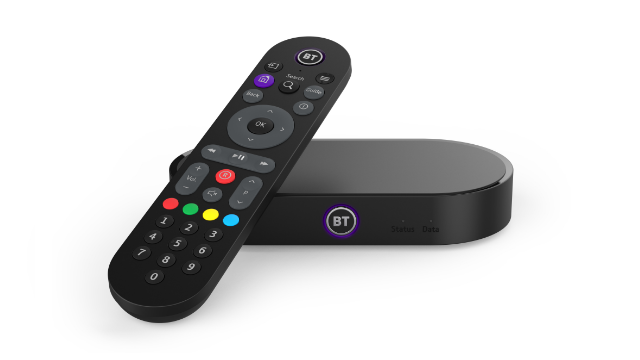
Activate the batteries by removing the plastic protector and pressing the power button.
The remote control will automatically pair with the TV box and programme itself to control your TV as well, so there’s no need to use separate remotes.
Remote control not pairing?
Try to reset it by following these simple steps.
If your remote control does not pair, you will need to use separate remotes for your TV and TV box.
Follow on-screen instructions
.jpg)
Follow the instructions on your TV screen to continue with your Wi-Fi set up. You'll be able to connect Wi-Fi by either using the WPS button or manually typing in your hub's password.
Important things to note:
- It can take up to two minutes to connect your Smart Hub to your TV Box Edge with the WPS button. There will be a two-minute countdown timer on your TV screen.
- If you see a "weak signal" message next to your hub's name in the Wi-Fi network list, move your devices closer to the hub. Check the position of your TV box from step 2. If your devices are still not connecting with Wi-Fi after this, you can use an Ethernet cable instead.